Wednesday, February 18, 2015

How to: Configure People Search Directory on SharePoint 2013

People search can be important to an organization when you need to find someone with a specific skill. One thing is to display the search box and you can find for someone but, that doesn't offer a great user experience. The other way is to display a people directory and provide option to filter them and narrow the results such as department, job title, location etc. based on some criteria which is called Refinement in SharePoint terms.

Here I'm going to show you how to configure the latter. This can be setup using the SharePoint 2013 search web part.

What you are looking at at the end of this configuration is this.


Here are the steps that you will follow:
  • Assuming that you already have the Search Service and User Profile Service setup. Navigate to Site Settings > Under Look and Feel select Page Layouts and Site Templates
  • Select (Welcome Page) Search People and (Welcome Page) Search Results under Page Layouts section.
  • Now Navigate to Pages Library and select New Document > Page
  • On the Create Page screen select Search People page layout, write an appropriate name for the page and select Create.
  • This web part will not show any results until we specify a query. To show all the people by default, we need to modify the query for People Search Core Results Web Part. Select Change Query button in the web part properties. Under Basics select Property contentclass under Property Filter and enter spspeople as the manual value as shown below.
  • Now, we will have the list of people displayed. To configure refinement filters, to show other metadata properties that are defined in our search center, select the Choose refiners option on the refinement web part. Select Department and Job Title. Note that the managed property must have the ‘Refinable’ option selected in the search schema for it to be available in this list.

For further configurations like sorting and table based layouts, I found this very helpful.


Enhance the search experience!

Wednesday, February 11, 2015

How to fix: SharePoint 2013 Search not working and EPM / PWA is slow

Where do you start debugging the issue? I first checked the Search Service Application

  • Navigate to Central Admin
  • Under System Settings select Manage services on server
  • Select SharePoint Server Search and check Search Service Application

Sure enough, it pointed out what's wrong.

Issue

The Search Service Application Topology was throwing an error:
Unable to retrieve topology component health states. This may be because the admin component is not up and running.
Resolution Steps

I referred to the SharePoint ULS logs and noticed that the Query Processing Component was throwing the following error:
There was no endpoint listening at [URL] that could access the message.
Tried IMS endpoints for operation execution: operation sent to IMS failed: Resource saturation, Try again later
This pointed out that the search service was trying to use a resource but something was limiting the usage.

Solution

The issue was resolved by configuring the noderunner.exe.config file by changing the value of the node <memoryLimitMegaBytes> to 0 (zero).

C:\Program Files\Microsoft Office Servers\15.0\Search\Runtime\1.0\noderunner.exe.config

Further References

http://blogs.technet.com/b/mpriem/archive/2012/09/05/sharepoint-2013-preview-hungry-search-service.aspx

To identify which noderunner.exe is taking up all the memory, please follow this URL:
http://blogs.msdn.com/b/kristopherloranger/archive/2014/03/24/sharepoint-2013-noderunner-exe-process-information.aspx

Wednesday, January 28, 2015

OS X Yosemite 10.10.2 released by Apple

This update brings a lot of improvements to OS X. I personally feel the Wi-Fi disconnection and slow web page load issue will make a significant change to the user experience.

Here is what you get with the latest update.

  • Resolves an issue that may cause Wi-Fi to disconnect
  • Resolves an issue that may cause web pages to load slowly
  • Fixes an issue that caused Spotlight to load remote email content when the preference was disabled in Mail
  • Improves audio and video sync when using Bluetooth headphones
  • Adds the ability to browse iCloud Drive in Time Machine
  • Improves VoiceOver speech performance
  • Resolves an issue that causes VoiceOver to echo characters when entering text on a web page
  • Addresses an issue that may cause the input method to switch languages unexpectedly
  • Improves stability and security in Safari
Download the update from Mac App Store. Apple also released iOS 8.1.3

Has anyone updated their Mac yet? Give me your feedback in the comments section.

Apple released iOS 8.1.3 / Reduces space required to update / Also releases OS X Yosemite 10.10.2

The second part of the title is catchy. iOS 8 user adoption has been  noticeably slower than iOS 7 and one of the major reasons was to clear up space on your iPhone before the upgrade.

iOS 8.1.3 is comparatively a small upgrade. Apple apparently is testing iOS 8.2 currently to be released inline with their Apple Watch ahead this year.

Are you expecting a feature or fix that you did not find with iOS 8.1.3? Make them hear in the comments section!

Wednesday, October 22, 2014

Apple rolls back Camera Roll

camera roll on iOS 8.1For those of you who were shocked seeing photos deleted from your iPhone after the iOS 8 update, you just got tricked by Apple. You would have figured that out by now.

With iOS 8.1 your Camera Roll makes a victorious return. If you have enabled your iCloud Photo Library, the 'Camera Roll' will be replaced with 'All Photos'.

Wednesday, September 24, 2014

Clean App Switcher in iOS 8

You see recent and favorite Contacts in App Switcher after upgrading to iOS 8. Wish you could take them down? Follow along!
When you double click your home button, you see your recent apps which you can quickly switch between. With iOS 8 you also see avatars of your most recent and favorite contacts.

This feature is useful, but if you like it clean, you can have your way.

To disable your contacts from displaying in the app switcher -
  • Launch your Settings app
  • Select Mail, Contacts, Calendar
  • Under Contacts section select Show In App Switcher
Toggle the switch to disable your recent, favorites, or both contacts.

Wednesday, September 17, 2014

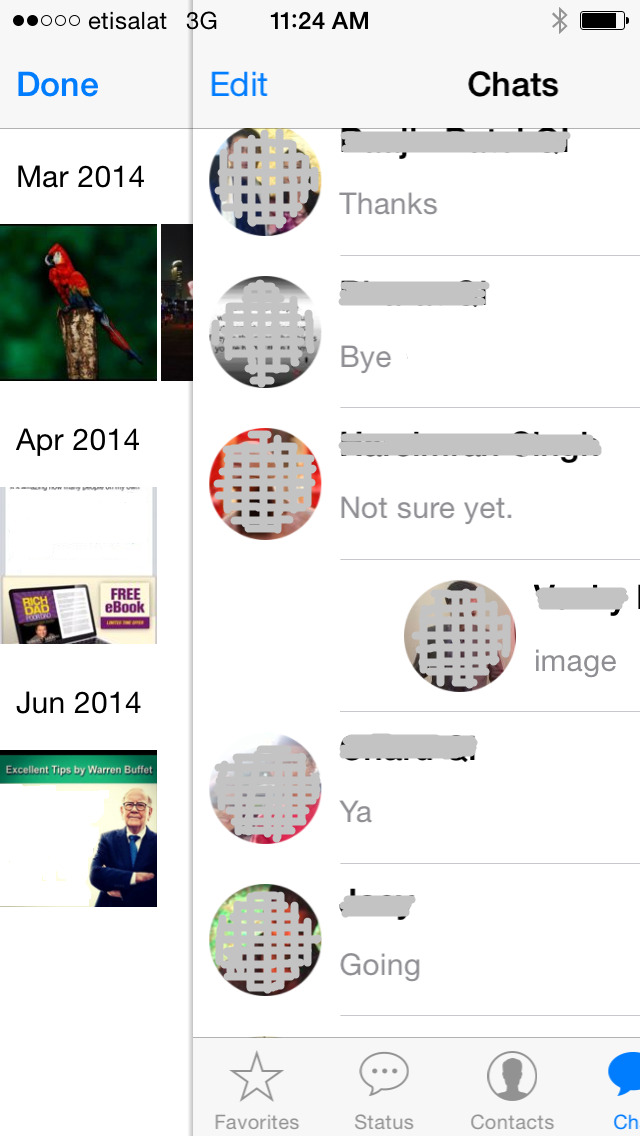
WhatsApp reveals shared media in a slide

This is a little less known feature I recently discovered on iOS 7 (iOS 8 is round the corner).

To see all media (images / videos) shared between you and your friend or group, one can of course

  • Open the friend's (or group's) chat window
  • Click on the friend's (or group's) name on top
  • Click on View All Media

The quicker way is to slide your finger from left to right on a particular friend (or WhatsApp group) from your chat list and you directly are in the View All Media screen.