Showing posts with label Apple. Show all posts
Showing posts with label Apple. Show all posts
Monday, August 8, 2016
Wednesday, January 28, 2015
OS X Yosemite 10.10.2 released by Apple
This update brings a lot of improvements to OS X. I personally feel the Wi-Fi disconnection and slow web page load issue will make a significant change to the user experience.
Here is what you get with the latest update.
Here is what you get with the latest update.
- Resolves an issue that may cause Wi-Fi to disconnect
- Resolves an issue that may cause web pages to load slowly
- Fixes an issue that caused Spotlight to load remote email content when the preference was disabled in Mail
- Improves audio and video sync when using Bluetooth headphones
- Adds the ability to browse iCloud Drive in Time Machine
- Improves VoiceOver speech performance
- Resolves an issue that causes VoiceOver to echo characters when entering text on a web page
- Addresses an issue that may cause the input method to switch languages unexpectedly
- Improves stability and security in Safari
Download the update from Mac App Store. Apple also released iOS 8.1.3
Has anyone updated their Mac yet? Give me your feedback in the comments section.
Apple released iOS 8.1.3 / Reduces space required to update / Also releases OS X Yosemite 10.10.2
The second part of the title is catchy. iOS 8 user adoption has been noticeably slower than iOS 7 and one of the major reasons was to clear up space on your iPhone before the upgrade.
iOS 8.1.3 is comparatively a small upgrade. Apple apparently is testing iOS 8.2 currently to be released inline with their Apple Watch ahead this year.
Are you expecting a feature or fix that you did not find with iOS 8.1.3? Make them hear in the comments section!
Wednesday, October 22, 2014
Apple rolls back Camera Roll
 For those of you who were shocked seeing photos deleted from your iPhone after the iOS 8 update, you just got tricked by Apple. You would have figured that out by now.
With iOS 8.1 your Camera Roll makes a victorious return. If you have enabled your iCloud Photo Library, the 'Camera Roll' will be replaced with 'All Photos'.
Wednesday, September 24, 2014
Clean App Switcher in iOS 8
You see recent and favorite Contacts in App Switcher after upgrading to iOS 8. Wish you could take them down? Follow along!

This feature is useful, but if you like it clean, you can have your way.
To disable your contacts from displaying in the app switcher -
- Launch your Settings app
- Select Mail, Contacts, Calendar
- Under Contacts section select Show In App Switcher
Toggle the switch to disable your recent, favorites, or both contacts.
Wednesday, September 17, 2014
WhatsApp reveals shared media in a slide
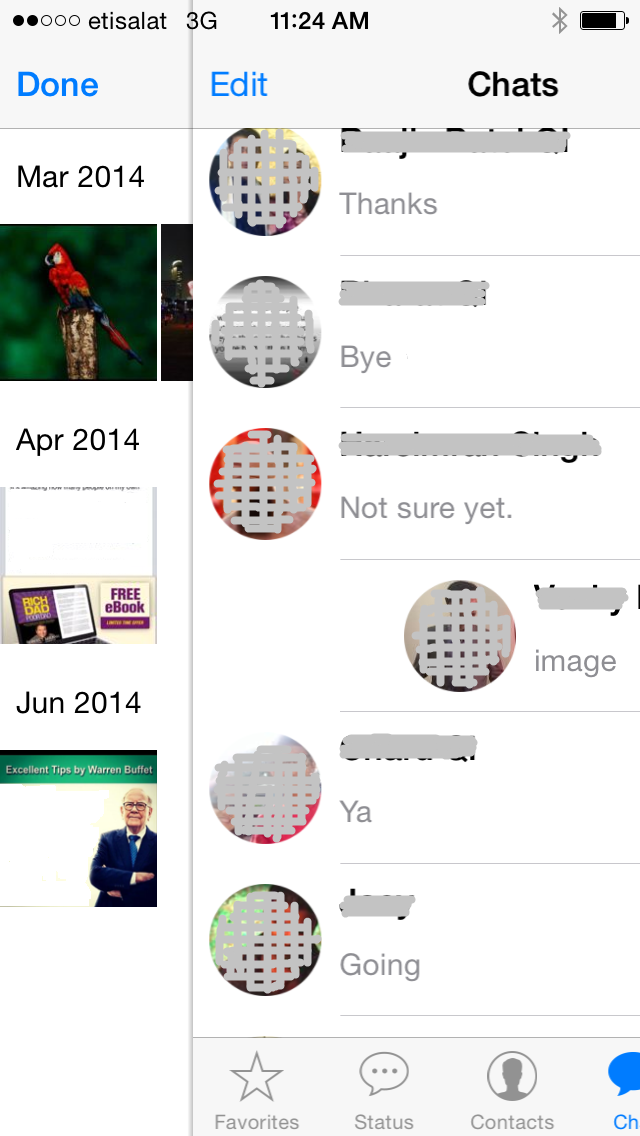 This is a little less known feature I recently discovered on iOS 7 (iOS 8 is round the corner).
To see all media (images / videos) shared between you and your friend or group, one can of course
- Open the friend's (or group's) chat window
- Click on the friend's (or group's) name on top
- Click on View All Media
The quicker way is to slide your finger from left to right on a particular friend (or WhatsApp group) from your chat list and you directly are in the View All Media screen.
Thursday, September 11, 2014
WiFi calling on Apple iPhone 6 & iPhone 6 Plus
You will be able to make regular calls to people over a WiFi connection if and when you have a poor network reception.

Benefits?
What is WiFi calling?
WiFi calling uses WiFi to enable voice and SMS to provide better mobile phone coverage in low cellular reception areas.
How does it work?
Moving past the technicalities, WiFi calling is a phone related feature which can be enabled by navigating to Settings / Phone / WiFi Calling and toggle the switch to ON.
- Voice and SMS over WiFi
- Improved battery life since it's only using one radio connection
- Hop from one network to another seamlessly. Start a call over WiFi at home, then step outside and the call will switch to your cellular network automatically and seamlessly without disruption.
- Hi-def audio calling.
How would calls be billed?
This is going to be operator specific and we will need to wait to hear more on this technology and service plan parameters.
Will this work anywhere in the world?
I wish this was a good news but this is only supported by selected operators around the world yet. Several operators around the world have WiFi calling services, including T-Mobile US, Orange UK and Rogers Wireless in Canada. We will have to wait until Apple ends up with a deal with Etisalat or Du in UAE or other operators around the world.
Is it iPhone 6 only feature or will it support all iOS 8 enabled devices?
9to5mac.com says "WiFi calling is one of several new Phone-related features in the pipeline for iOS 8."
gizmodo.com says "You'll be able to call people using your WiFi connection on the iPhone 6."
appleinsider.com says "T-Mobile confirms support for Wi-Fi calling on iPhones running iOS 8."
I guess it's a matter of time when we'll clear the hazy air.
Wednesday, July 30, 2014
Increase your iPhone 5 battery life
 Here are some less known options (may be obvious) to improve your iPhone 5 / 5s battery life.
Turn off Location Services
You might only need this on Google Maps to help you with navigation. Other than that I don't see much use of it on any other app. Many use the check-in facility on Facebook but caution here, Facebook location service is a battery hog.
- Settings / Privacy / Location Service - Turn of for as many apps as possible.
It turns out that the work your phone does to reload these apps into the phone's RAM is more draining on the battery than keeping them in the RAM if they are already there. iPhone does a good job of managing what is actually running. Seeing these apps on double-clicking the home button doesn't actually mean they are running.
Turn off AirDrop
Swipe your finger from the bottom of the screen, click on AirDrop and select Off. When you're not using it, its best to turn it off.
Turn off Automatic Timezone
Unlike some your daily commute might not span different time zones. You can turn this feature off and manually change it to the new timezone.
- Settings / General / Date & Time / Turn off Set Automatically
Turn off Background App Refresh
Turning off as much of the Background App Refresh as possible is a good idea.
- Settings / General / Background App - and turn off as many apps as possible, or all of them.
In the midst of all the turn-off(s), here is something you can turn on. iPhone does a good job of adjusting the brightness so that it isn't unnecessarily bright when it doesn't need to be. The display is one of the most power consuming facet of your phone.
- Settings / Wallpapers & Brightness / Auto-Brightness On
Turn on Reduce Motion
This will take away some of the pretty animations in iOS 7, but I'm just staying true to the purpose of the post.
- Settings / General / Accessibility - and turn Reduce Motion to 'On'
Sunday, July 17, 2011
Sync'ing Multiple Google Calendars with your iOS device
iPhone, iPod touch and iPad users can now get their multiple Google Calendars on their iOS devices. It took me a while to figure this out but now since I did, I thought why not benefit the world.
By default Google synchronizes the primary calendars to your iOS device, but now with different projects running on different calendars, you find yourself in a fix.
The solution: Once you've successfully setup your Gmail Account with an iOS device (make sure you have your calendar service on as shown in the below screenshot)

Now open your safari browser and navigate yourself to http://www.google.com/calendar/iphoneselect. Select the calendars that you want on your device and click Save.
Did you get there? Cheers!!
By default Google synchronizes the primary calendars to your iOS device, but now with different projects running on different calendars, you find yourself in a fix.
The solution: Once you've successfully setup your Gmail Account with an iOS device (make sure you have your calendar service on as shown in the below screenshot)

Now open your safari browser and navigate yourself to http://www.google.com/calendar/iphoneselect. Select the calendars that you want on your device and click Save.
Did you get there? Cheers!!
Subscribe to:
Posts (Atom)