Red button (Call End button) + Home button (on the screen)
Did you get it?
Tuesday, December 4, 2012
Monday, November 26, 2012
You updated the workflow, but the changes haven't taken effect
I know how frustrating this can get, I have been there.
I changed the workflow using SharePoint Designer 2007 and published it, but when I test the workflow on SharePoint 2007, it seems to have not been effected by those changes.
Seems like the SPD workflow cache is being superior. Here is how you go about resolving:
I changed the workflow using SharePoint Designer 2007 and published it, but when I test the workflow on SharePoint 2007, it seems to have not been effected by those changes.
Seems like the SPD workflow cache is being superior. Here is how you go about resolving:
- Close the designer (SharePoint Designer)
- Navigate to %system drive%\Documents and Settings\%user%\Local Settings\Application Data\Microsoft\WebSiteCache
- Open the directory that you are referring to. This is similar to the name of your website.
- Delete the assembly that you were changing. (You might as well delete all the files here)
- Open SharePoint Designer, publish the workflow and check
Sunday, November 4, 2012
The web application at [URL] could not be found
Here is an error I encountered while calling the SPSite object using the URL:
The Web application at [URL] could not be found. Verify that you have typed the URL correctly. If the URL should be serving existing content, the system administrator may need to add a new request URL mapping to the intended application.
It was the first time I encountered this and this is how I moved about resolving the issue
1. Checked if the URL was really not available.
That wasn't the case. The URL was very much valid and hence this option got eliminated.
2. Google search on this issue almost always pointed to the bit-ness of the platform. That the application was targeting x86 platform and SharePoint Server was x64 bit platform.
In my case, this wasn't true either. Both my platforms were on x86. It was easy to eliminate this option.
3. AAM, Alternate Access Mapping not done properly.
Wasn't an issue in my case. Any guesses? This option was eliminated as well.
4. The code is a windows or web service application which you are running with an account that does not have permissions to connect to SharePoint or SQL Server.
This is where I was at and out of it. This was the issue in my case. My web service code was running on the DefaultAppPool and the identity for the DefaultAppPool was Network Service Account.
I selected configurable and provided the username and password of a user who had elevated privileges.
It all worked and I hope it does for you as well!
The Web application at [URL] could not be found. Verify that you have typed the URL correctly. If the URL should be serving existing content, the system administrator may need to add a new request URL mapping to the intended application.
It was the first time I encountered this and this is how I moved about resolving the issue
1. Checked if the URL was really not available.
That wasn't the case. The URL was very much valid and hence this option got eliminated.
2. Google search on this issue almost always pointed to the bit-ness of the platform. That the application was targeting x86 platform and SharePoint Server was x64 bit platform.
In my case, this wasn't true either. Both my platforms were on x86. It was easy to eliminate this option.
3. AAM, Alternate Access Mapping not done properly.
Wasn't an issue in my case. Any guesses? This option was eliminated as well.
4. The code is a windows or web service application which you are running with an account that does not have permissions to connect to SharePoint or SQL Server.
This is where I was at and out of it. This was the issue in my case. My web service code was running on the DefaultAppPool and the identity for the DefaultAppPool was Network Service Account.
I selected configurable and provided the username and password of a user who had elevated privileges.
It all worked and I hope it does for you as well!
Wednesday, October 24, 2012
How to fix: "List does not Exist" error
Stepping into the SharePoint world, I pretty early understood few of the famous SharePoint errors and one of them is this.
"List Does not Exist.
The page you selected contains a list that does not exist. It may have been deleted by another user."
There are plenty of solution offerings when you search this issue online, but one that worked for me was that the user did not have access to the form template library at http://<url>/FormServerTemplates
"Go to the above URL > Settings > Library Settings > Permission to this Library" and provide permission to your user.
It all works!
PS: The error message might sometimes be deceiving, don't be deceived. Mostly, it has nothing to do with a deleted list. It was just an access issue. Stay focused! :)
"List Does not Exist.
The page you selected contains a list that does not exist. It may have been deleted by another user."
There are plenty of solution offerings when you search this issue online, but one that worked for me was that the user did not have access to the form template library at http://<url>/FormServerTemplates
"Go to the above URL > Settings > Library Settings > Permission to this Library" and provide permission to your user.
It all works!
PS: The error message might sometimes be deceiving, don't be deceived. Mostly, it has nothing to do with a deleted list. It was just an access issue. Stay focused! :)
Monday, October 15, 2012
In less than 140 characters
This post contains many SharePoint Tidbits.
MOSS 2007 - Save Site as Template missing?
Append your site / sub site's URL with /_layouts/savetmpl.aspx
For example - Replace http://moss:101/default.aspx with http://moss:101/_layouts/savetmpl.aspx
Sunday, October 7, 2012
Why are InfoPath rules not triggering?
Customizing InfoPath at one of my client bought me to a challenge. Now, though challenge sounds a biggie, it wasn't really the case. In a moment, you'll know why!
I wanted to populate few text fields on the selection of a Dropdown list. I created a web service and connected it to InfoPath via InfoPath data connections. This would fetch data based on the dropdown selection and populate the fields.
But it wasn't the case. The fields weren't being populated!
I published and checked the web service separately and it was returning perfect as expected. I repeatedly checked the InfoPath form rules and they were fine too.
Now, if you are new to InfoPath customization (like I am), you should be convinced that you are missing something somewhere.
Looking around I navigated to the Dropdown list properties > Browser Forms > Postback Settings. This was set to Never. I changed it to On Demand and .......
Ah ha!
Biggie? I told you, you'll know why not :)
I wanted to populate few text fields on the selection of a Dropdown list. I created a web service and connected it to InfoPath via InfoPath data connections. This would fetch data based on the dropdown selection and populate the fields.
But it wasn't the case. The fields weren't being populated!
I published and checked the web service separately and it was returning perfect as expected. I repeatedly checked the InfoPath form rules and they were fine too.
Now, if you are new to InfoPath customization (like I am), you should be convinced that you are missing something somewhere.
Looking around I navigated to the Dropdown list properties > Browser Forms > Postback Settings. This was set to Never. I changed it to On Demand and .......
Ah ha!
Biggie? I told you, you'll know why not :)
Monday, September 10, 2012
Don't see Save as Site Template
I wanted to migrate my site from one SharePoint Site Collection to another. And I thought to save the site as a template and upload the template to the new Site Collection and Activate it. But when I navigated to the Site Settings page of the site I wanted to save as template, I din't find the link.
Under Site Actions



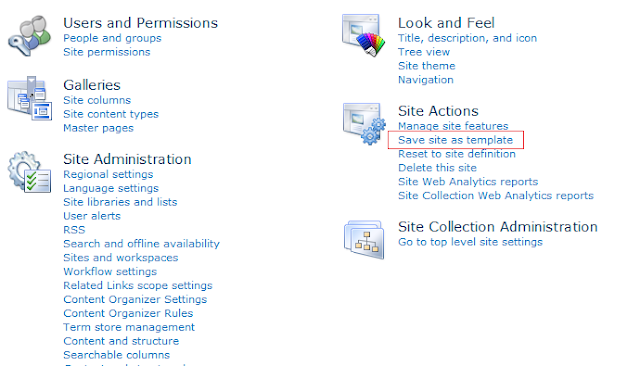
Under Site Actions
This post is limited to making Save as site template available here and not how to Export and Import the template.
Steps to enable Save as site template
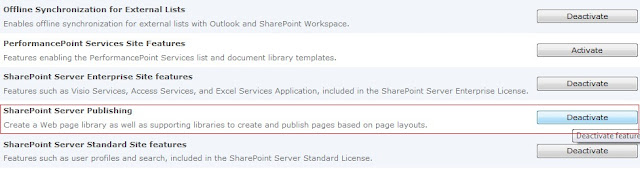
- Click on Manage Site features under Site Actions.
- Click Deactivate on SharePoint Server Publishing feature.
- Click Deactivate this feature on the page that opens.
- Navigate back to Site Settings page for that site and under Site Actions you will now see Save as site template.
Picture speaks a thousand words: I should have done this before the write up :)


Subscribe to:
Posts (Atom)